Category: Blog

  • competetive-code-hacktoberfest

    COMPETITIVE CODING MASTERIALS

    forthebadge forthebadge forthebadge forthebadge

    Star This Repo and do check my other repos, there are some cool stuff you would like.

    Multiple Platforms:

    DS-Algo:

    Git:

    VS-Code-Guid:

    Javascript:

    Resources:

    Python:

    Happy Learning 🙂

    Visit original content creator repository
  • hexo-theme-peomas

    Peomas

    Required Node version npm version hexo versionLicense: MIT

    A concise Hexo theme that can be used for Github Pages personal blog.

    See Demo

    Features

    • Github style markdown
    • Local search
    • Tags support
    • Categories support
    • Responsive layout
    • About personal page
    • Pagination

    Quick Start

    Installation

    $ git clone https://github.com/thomasyu929/hexo-theme-peomas.git

    Set the theme to hexo-theme-peomas in the _config.yml which in the root path.

    ## Themes: https://hexo.io/themes/
    theme: hexo-theme-peomas

    About Page

    About page needs to be created by manually.

    $ hexo new page about

    Then, open /source/about/index.md which in your blog directory. Add layout property.

    ---
    title: about
    layout: about
    ---
    Add content for this markdown, this content will show on about page.

    Category Page

    Category page needs to be created by manually.

    $ hexo new page category

    Then, open /source/category/index.md which in your blog directory. Add layout property.

    ---
    title: about
    layout: category
    ---

    Tag Page

    Tag page needs to be created by manually.

    $ hexo new page tag

    Then, open /source/tag/index.md which in your blog directory. Add layout property.

    ---
    title: about
    layout: tag
    ---

    Configuration

    Favicon

    Favicon can replace in the theme’s _config.yml

    favicon: /img/favicon.png

    Also have to replace the file in the theme/source/img.

    Logo Mark

    Logo Mark which in the left of the navigation can be customized.

    # Logo Mark
    mark: Peomas
    logo_mark: null

    Default only show mark, just text mark. Can add path for logo_mark , that way will show the logo pic.

    Scroll To Top Button

    Scroll button can be disabled by set to false in _config.yml

    # Scroll button
    scroll_top_btn:
      enable: true

    NProgress Bar

    NProgress can be disabled or change bar color in _config.yml

    # NProgress
    nprogress: 
      enable: true
      color: "#131313"

    Menu

    The menu is configured in the theme’s _config.yml.

    # Navigation menu
    menu:
      Home: /
      Archives: /archives
      Category: /categories
      Tag: /tags
      About: /about

    Index Page

    The index page related settings are configured in the theme’s _config.yml.

    # Index Page config
    index:
      enable_sticky: true
      post_url_target: _self
      enable_category: true
      enable_tag: true

    Table of Contents

    Table of contents was generated based on Tocbot. It can be disabled in _config.yml

    # Post Page config
    toc:
      enable: true

    About Page

    The about page related settings are configured in the theme’s _config.yml.

    about:
      avatar: 
        enable: true
        link: /img/avatar.png
      title: Thomas Yu
      subTitle: Front-End Developer - Labcorp
      icon:
      - { class: "fab fa-github", url: "https://github.com/thomasyu929", info: "Thomas Yu's Github" }
      - { class: "fas fa-envelope", url: "mailto:yby4301955@gmail.com", info: "Mail to me" }
      - { class: "fab fa-linkedin", url: "https://linkedin.com", info: "LinkedIn" }
      - { class: "fas fa-rss", url: "/atom.xml", info: "Subscribe Thomas's blog"}

    Tag Page

    The tag page was generated by tagcloud automatically. tagcloud related settings are configured in the theme’s _config.yml.

    # Tag Page config
    tagcloud:
      min_font: 15
      max_font: 30
      unit: px
      start_color: "#337ab7"
      end_color: "#0d6efd"
    Visit original content creator repository
  • vim-mdnquery

    Vim-MdnQuery

    Query the Mozilla Developer Network documentation without leaving Vim.
    The network requests are done asynchronously if the job-control feature is
    available (both in NeoVim and Vim), otherwise it falls back to using Ruby.
    To avoid unnecessary requests, the search results and documentation entries are
    cached in the current Vim instance, which allows to switch quickly between them.
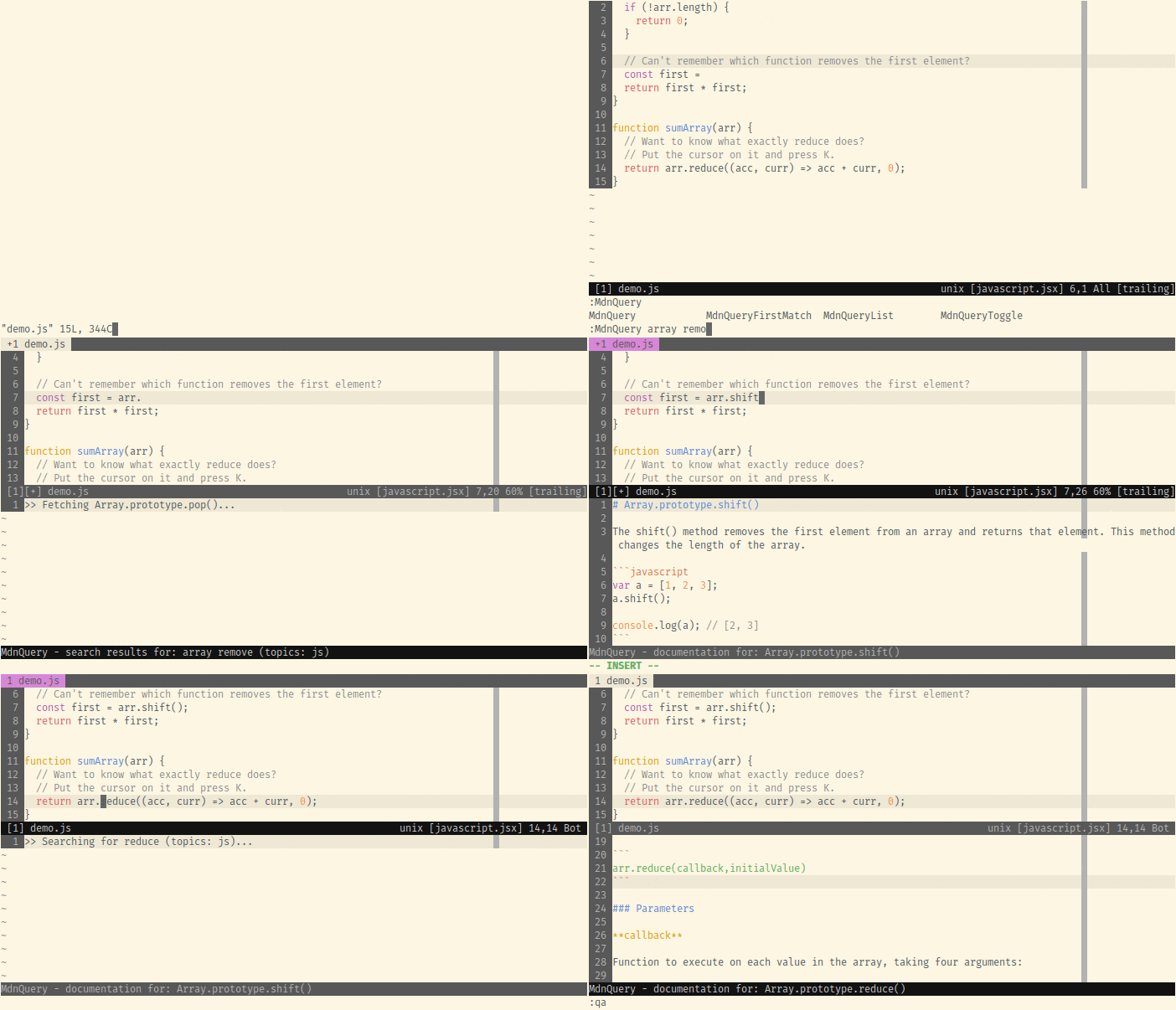
    Demo

    Requirements

    • NeoVim or Vim with the job-control feature for asynchronous execution.
    • Vim compiled with Ruby support when job-control is not available.
    • The gem mdn_query.

    Installation

    gem install mdn_query

    Install the plugin with your favourite plugin manager.

    Example using vim-plug

    Add the following to ~/.vimrc or ~/.config/nvim/init.vim respectively:

    Plug 'jungomi/vim-mdnquery'

    Reload the config file and install the plugins:

    :source $MYVIMRC
    :PlugInstall
    

    Usage

    Simple Search

    :MdnQuery array remove
    

    Searches for array remove and shows the list of results in a buffer when the
    search finishes. Inside the buffer you can open the entry under the cursor by
    pressing <Enter>. When showing an entry you can press r to return to the
    list of results.

    Often a search query is specific enough that the first result in the list is the
    one that will be opened. Doing that manually would quickly become annoying and
    for this reason :MdnQueryFirstMatch exists, which automatically opens the
    first entry.

    :MdnQueryFirstMatch array.pop
    

    Keywordprg (K command)

    The K command is used to lookup documentation for the word under the cursor. It
    defaults to man on Unix and :help otherwise. The default behaviour is not
    very useful for many file types. This plugin automatically changes that for
    JavaScript files . Pressing K in normal mode uses this plugin to search for the
    word under the cursor.

    It might be useful to also have this behaviour for other file types, so you can
    use a simple autocommand to set it for them:

    autocmd FileType html setlocal keywordprg=:MdnQueryFirstMatch

    See :help mdnquery-keyworprg for more details.

    Topics

    The search is limited to the topics specified in g:mdnquery_topics, which is
    a list of topics and defaults to ['js']. Having a global list of topics for
    all searches might show some undesired results. Instead of having to change the
    global option, you can set b:mdnquery_topics, which is local to the current
    buffer and is used over the global one if it exists. This can easily be combined
    with an autocommand to set the correct topics for a specific file type.

    " Search in JS and CSS topics
    let g:mdnquery_topics = ['js', 'css']
    " Search only for HTML in the current buffer
    let b:mdnquery_topics = ['html']
    
    " Automatically set the topics for HTML files
    autocmd FileType html let b:mdnquery_topics = ['css', 'html']

    If you would like to execute a search for specific topics without having to
    change any settings, you can use the functions mdnquery#search(query, topics)
    and mdnquery#firstMatch(query, topics).

    call mdnquery#search('link', ['css', 'html'])
    call mdnquery#firstMatch('flex align', ['css'])

    Buffer appearance

    By default the buffer appears after a search is completed and it is not
    automatically focused. You can change this behaviour by changing the
    g:mdnquery_show_on_invoke and g:mdnquery_auto_focus settings. The buffer is
    opened with the :botright command and therefore appears at full width on the
    bottom of the screen or when g:mdnquery_vertical is set, it appears at full
    height on the very right of the screen. The size of the buffer can be changed
    with the g:mdnquery_size setting. For example to automatically show and focus
    the window with a height of 10 lines, this configuration can be used:

    let g:mdnquery_show_on_invoke = 1
    let g:mdnquery_auto_focus = 1
    let g:mdnquery_size = 10

    If you prefer to only focus the buffer when a search is finished, you can use
    the following autocommand instead of setting g:mdnquery_auto_focus:

    autocmd User MdnQueryContentChange call mdnquery#focus()

    See :help mdnquery-settings for the full list of settings.

    Documentation

    For additional and more detailed information take a look at the plugin’s help.

    :help mdnquery.txt

    Known Issues

    Only for Vim versions without the job-control feature.

    LoadError: incompatible library version - Nokogiri

    This error occurs when using a Ruby installed with RVM but Vim was compiled with
    system ruby. To fix it tell RVM to use system Ruby and then reinstall the gem,
    or simply get a Vim version with job-control support.

    rvm use system
    gem install mdn_query

    Visit original content creator repository

  • COSCUP-Volunteer

    COSCUP Volunteer 志工平台

    GitHub OpenSSF Best Practices

    English below

    COSCUP Volunteer 志工服務系統,主要解決招募、人員管理、行政流程建立。 https://volunteer.coscup.org/

    授權

    GNU Affero General Public License version 3 (AGPL-3.0)

    如何貢獻專案?

    更多的如何貢獻細節可以參考「志工平台文件」。

    Fork me

    1. 使用 github fork 的方式建立一份到自己的帳號底下。(詳細的操作可以參考 Working with forks
    2. 參考 README.mdLocal Development 先建立起本地端開發環境。

    Pull Request(PR)

    如果你的開發很順利,覺得可以送出一版 PR 讓我們 review,也請透過 Github 建立 pull request 的方式發給我們!

    更多相關資訊

    1. 請先閱讀開發文件中的 Introduction,了解平台的架構與服務。
    2. 查看目前已知的問題 Issues
    3. 查看目前的開發 roadmap
    4. 或是到 COSCUP 行政組 – 開發組頻道討論。

    更詳細的開發內容可以參考開發文件

    問題回報

    問題回報請使用 Issues、如果遇到安全問題的回報,可以使用 GPG 加密後回報。


    COSCUP Volunteer

    GitHub OpenSSF Best Practices

    The COSCUP volunteer platform is an online tool that allows interested individuals to register as volunteers for the conference, and a way for volunteers to communicate with each other and with the organizers.

    License

    GNU Affero General Public License version 3 (AGPL-3.0)

    How to contribute?

    The more details about how to contribute, please learn more from Volunteer Docs.

    Fork me

    1. Create a fork on your own GitHub account using the ‘fork‘ feature. (For detailed instructions, please refer to ‘Working with forks‘ guide.)
    2. Refer to the “Local Development” section in the README.md to set up the local development environment first.

    Pull Request(PR)

    If your development is smooth and you feel ready to submit a version for review, please use the Github pull request feature to send it to us!

    More details

    1. Please read the Introduction in the development documentation to understand the platform’s architecture and services.
    2. Check the known issues in Issues.
    3. Check the current development roadmap.
    4. Or, discuss in the COSCUP Secretary Team - Development channel.

    More detailed development information can be found in the development documentation.

    Report

    Please use “Issues” to report any problems. If you encounter security issues, please report them encrypted using GPG.

    Visit original content creator repository
  • pre-commit-stylelint

    Stylelint mirror for pre-commit

    Mirrors all* Stylelint releases for the pre-commit hooks framework.

    Usage

    Add the following to your .pre-commit-config.yaml:

    - repo: https://github.com/thibaudcolas/pre-commit-stylelint
      rev: v14.4.0
      hooks:
        - id: stylelint

    Change rev to the stylelint version you want to use from the available versions as tags.

    With additional dependencies

    To use plugins or shared configurations with stylelint, declare them (and stylelint) with additional_dependencies:

    - repo: https://github.com/thibaudcolas/pre-commit-stylelint
      rev: v14.4.0
      hooks:
        - id: stylelint
          additional_dependencies:
            # stylelint itself needs to be here when using additional_dependencies.
            - stylelint@14.4.0
            - stylelint-config-standard-scss@3.0.0
            # Package names starting with `@` need to be quoted.
            - "@scope/my-awesome-plugin@0.12.0"

    With additional stylelint options

    Use pre-commit’s args:

    - repo: https://github.com/thibaudcolas/pre-commit-stylelint
      rev: v14.4.0
      hooks:
        - id: stylelint
          args: [--report-needless-disables, --report-invalid-scope-disables]

    Automatically fix issues

    Stylelint supports a --fix option that will automatically fix the code. This requires the args option:

    - repo: https://github.com/thibaudcolas/pre-commit-stylelint
      rev: v14.4.0
      hooks:
        - id: stylelint
          args: [--fix]

    File types

    By default, this hook will run stylelint for the following file extensions: .css, .sass, .scss. If you want to change this, use files:

    - repo: https://github.com/thibaudcolas/pre-commit-stylelint
      rev: v14.4.0
      hooks:
        - id: stylelint
          files: \.(scss|vue)$

    Migrating from awebdeveloper/pre-commit-stylelint

    Compared to awebdeveloper/pre-commit-stylelint, this repository makes it possible to control the stylelint version with the rev property. This tiny difference removes the guesswork of trying to understand how to set up the hook.

    Switching is just a matter of updating the repo, and setting a rev for the desired version:

    -- repo: https://github.com/awebdeveloper/pre-commit-stylelint
    -  rev: c4c991cd38b0218735858716b09924f8b20e3812
    +- repo: https://github.com/thibaudcolas/pre-commit-stylelint
    +  rev: v14.4.0
      hooks:
        - id: stylelint

    With an unavailable stylelint versions

    * some versions of stylelint may be missing, though this isn’t the case as of June 2024 (v16.6.1 and below). This repository doesn’t automatically mirror patch releases to older versions of Stylelint, when they get released after another version with a “bigger” version number. If this happens, please open an issue so we manually add the release to the mirror.

    As a temporary workaround, you can configure pre-commit to install from any arbitrary version of stylelint with additional_dependencies:

    - repo: https://github.com/thibaudcolas/pre-commit-stylelint
      rev: v14.4.0
      hooks:
        - id: stylelint
          additional_dependencies:
            # v14.16.43 isn’t available as a tag, so we instead load it directly from npm:
            - stylelint@14.16.43

    Why this mirror exists

    pre-commit itself has poor support for the Node ecosystem, preferring to install projects with git rather than using packages as published. Setting up a mirror completely sidesteps those issues, and results in much faster installation times.

    See:

    Credits

    This repository is based on mirrors-prettier, with the hook configuration options of awebdeveloper/pre-commit-stylelint.

    Visit original content creator repository

  • ply2fbx

    PLY2FBX

    MagicaVoxelPLY形式で出力したボクセルのキャラクターにウェイトを設定して、テクスチャーを生成して、FBXとPNGを出力するBlender用のスクリプトです。

    • v1.0.4(2018/8/30) インストール方法をアドオンからできるように改善
    • v1.0.3(2018/8/30) エクスポート時にデータに含めるオブジェクトを選択する機能を追加

    2通りの方法で、ウェイト設定をしたキャラクターを作ることができます。

    • Blenderのみ利用する方法
    • Blenderとmixamoを利用
      • BlenderでエクスポートしたテクスチャーとFBXファイルをZIP圧縮して、mixamoにアップロードしてウェイト設定とアニメーション付けをする

    PLY形式のボクセルモデルのテクスチャーを作成して、FBXにエクスポートするのにも利用できます。

    バージョンアップする前に

    v1.0.4からアドオンとしてインストールするように変更しました。v1.0.3以前からバージョンアップする場合は、以下の手順に従ってstartupフォルダーに入れたply2fbx-armature.pyを削除してください。

    • Blenderが起動していたら閉じてください
    • Windowsの場合、C:\Program Files\Blender Foundation\Blender\2.79\scripts\startupを開きます
    • macの場合、Finderでアプリケーションを選択 -> blender-2.??-macOS-?? -> blenderを[Ctrl]+クリック -> パッケージの内容を表示 -> Contents -> Resources -> 2.79 -> scripts -> startupを開きます
    • ply2fbx-armature.pyを削除します(なければ大丈夫です)

    copy py file

    インストール

    Blender 2.79bにインストールする手順です。Blenderはインストール済みとします。

    • こちらから最新バージョンのply2fbx-armature.pyを、分かりやすい場所(デスクトップなど)にダウンロードします
    • Blenderを起動して、FileメニューからUser Preferencesを選択します
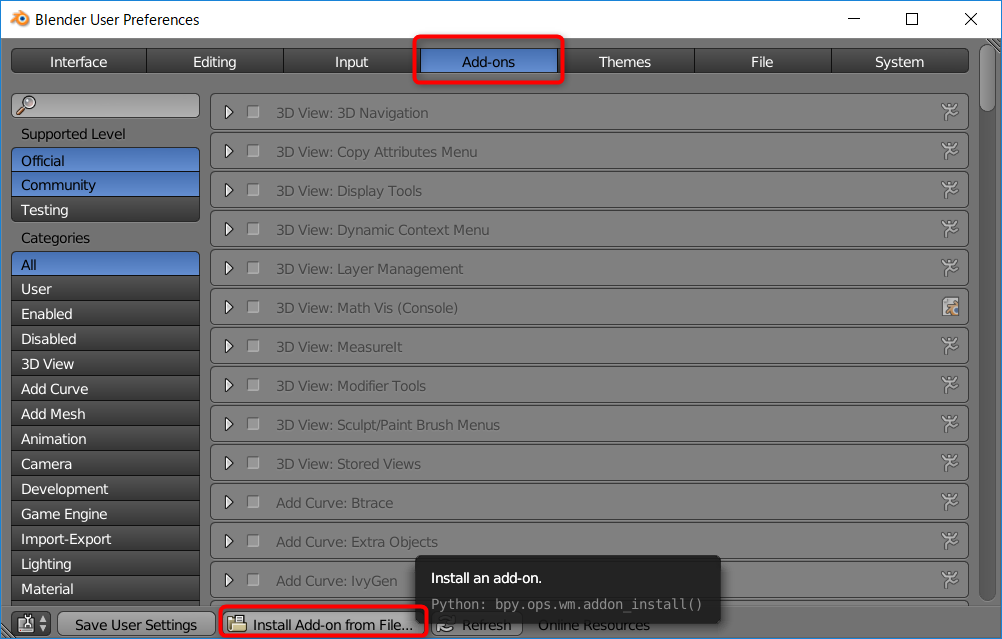
    • Add-onsを選択したら、*Install Add-on from File…*をクリックします

    From File

    • ダウンロード先を指定したら、ply2fbx-armature.pyを選択して、*Install Add-on from File…*ボタンをクリックします

    Install Add-on

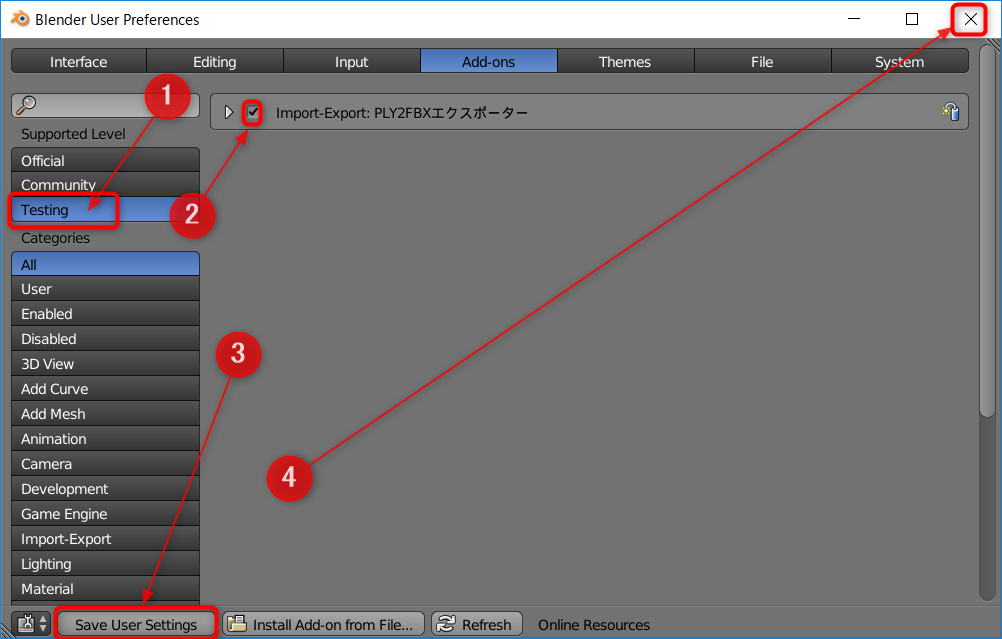
    • 左上からTextingをクリックして選択して、Import Export: PLY2FBXエクスポーターにチェックを入れて、左下のSave User Settingsボタンをクリックして状態を保存します

    Enable Add-on

    以上でインストール完了です。Blender User Preferencesウィンドは閉じて構いません。

    左のパネルの一番下にMiscタブが追加されるのでクリックしてください。Import PLY, Auto Weight, Export FBX and Textureの3つのボタンが確認できればOKです。

    show ply tool

    本来はAdd-onにした方がよい気もしましたが、詳しくないのでとりあえずStartupで読み込むようにしました。(対応しました!2018/8/30)

    タブ名のMiscもそのままです。気になるようでしたらMITライセンスですのでご自由に修正ください。プルリク歓迎!

    チュートリアル

    詳しい利用手順は以下を参照ください。

    使い方

    Import PLY

    Import PLY

    機能

    以下の処理をします。

    • PLYファイルをインポート
    • 重複頂点を削除(Remove Doublesの実行)
    • 原点を中心に、左下のScaleの倍率でモデルの大きさを変更

    使い方

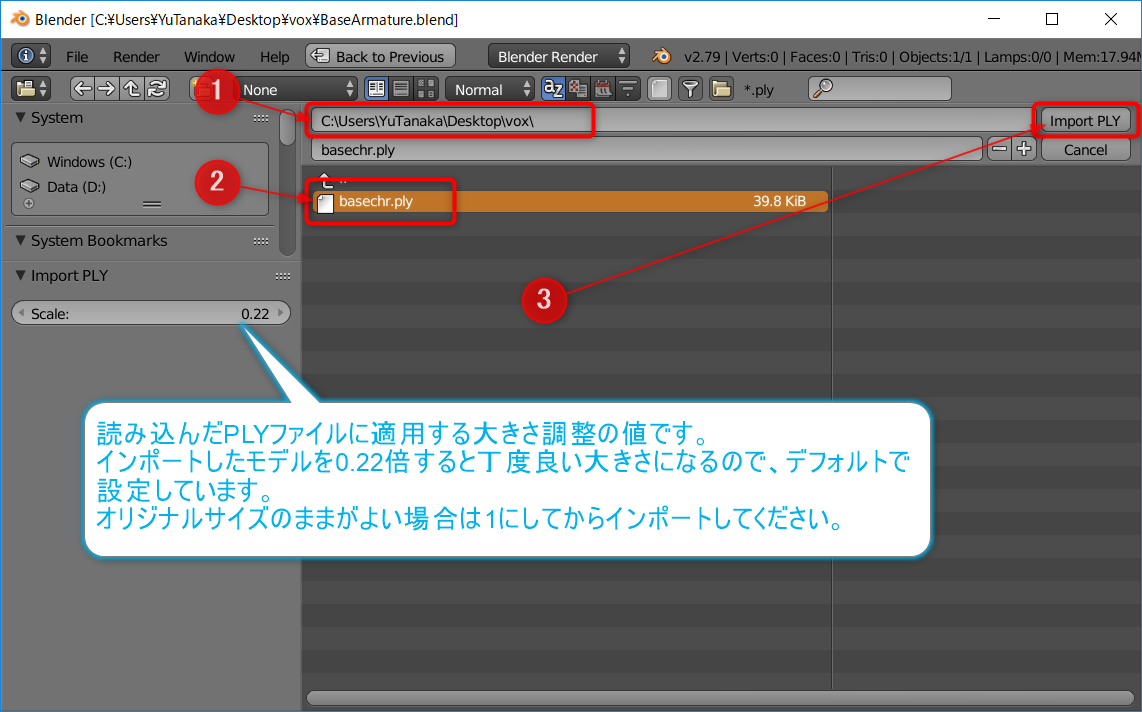
    Panel

    1. ファイルを読み込む場所を指定します
    2. PLYファイルを選択します(上のファイル名欄にファイル名を入力してもよいです)
    3. Importを実行するボタンです

    自動スケーリング機能

    MagicaVoxelでモデリングしたキャラクターをUnityに持っていくと、1ボクセル1m換算されるので巨大になります。そこで、インポート時に自動的にそれっぽいサイズに縮小する機能をつけています。

    左下のScale欄の値で、モデルをインポートした後に大きさを変更します。デフォルトは0.22倍で、だいし様のブログで配布されている素体をこの設定で読み込むとベースアーマチュアと丁度よい大きさになります。

    そのままのサイズで読み込む場合は1を設定するか、普通にFileメニューのImportで読み込んでください。

    自動ウェイト設定

    Auto Weight

    機能

    アーマチュアとキャラクターのメッシュを読み込んでいるとボタンが有効になります。以下を行います。

    • メッシュとアーマチュアに親子関係を設定
    • その際に、アーマチュアとメッシュに自動ウェイト設定

    使い方

    1. 事前にアーマチュアのblenderファイルと、キャラクターのメッシュをインポートしておきます
    2. Auto Weightボタンをクリックします

    以上で、読み込まれているアーマチュアとメッシュを自動的に選択して、親子設定します。

    複数のアーマチュアやメッシュがあることは想定していないので、1体分で作業してください。

    Export FBX and Texture

    Export

    機能

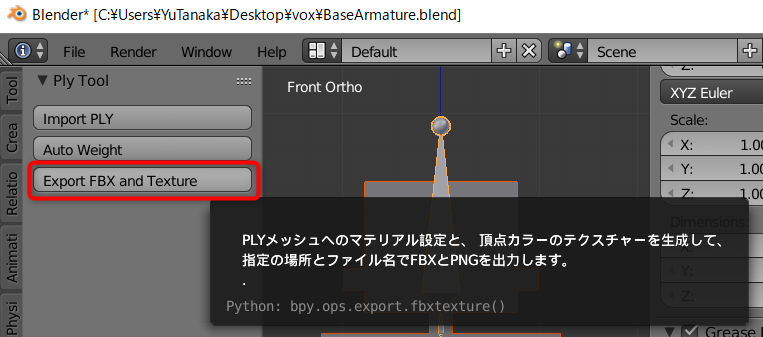
    PLYファイルをUnityで表示できるFBXにするために以下を実行します。

    • 頂点カラーからテクスチャーを生成
    • マテリアルを作成してアタッチ(マテリアルは白色に設定)
    • 指定のフォルダーとファイル名でFBXPNGファイルをエクスポート

    使い方

    事前にPLYファイルをインポートしておきます

    Export

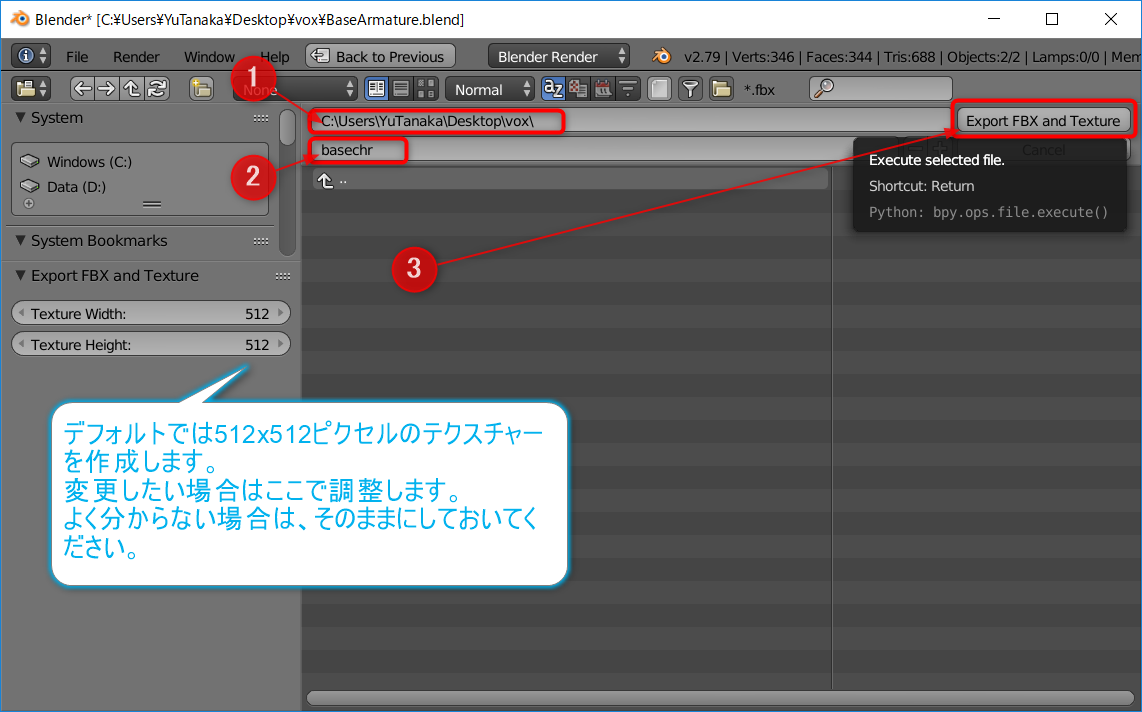
    1. 保存先のフォルダーを設定します
    2. ファイル名を入力します
    3. Export FBX and Textureボタンをクリックします

    以上で、指定したフォルダーに、ファイル名.fbxファイル名.pngが出力されます。

    • Unityにインポートする場合
      • 出力された2つのファイルを選択して、まとめてUnityのProjectビューにドラッグ&ドロップします
    • mixamoにアップロードする場合
      • 出力された2つのファイルをZIP圧縮して、mixamoにアップロードします

    テクスチャーサイズの変更について

    デフォルトでは512x512ピクセルのテクスチャーを生成します。このサイズはウィンドウの左下のTexture WidthTexture Heightで変更できます。

    ボクセル数が多いと、テクスチャーの解像度が足りなくなるかも知れません。その場合は、10242048に変更してみてください。

    逆に、512も必要ない場合は、128256に変更してみてください。

    データに含めるオブジェクトの選択

    デフォルトでは、CAMERALAMPは含めないようになっています。含めたい場合は、FBXのファイル名を指定する画面の左下で、[Shift]キーを押しながらCAMEARLAMPをクリックして追加してください。

    参考・関連URL


    ライセンス

    MIT License

    Copyright (c) 2018 Yu Tanaka

    Permission is hereby granted, free of charge, to any person obtaining a copy of this software and associated documentation files (the “Software”), to deal in the Software without restriction, including without limitation the rights to use, copy, modify, merge, publish, distribute, sublicense, and/or sell copies of the Software, and to permit persons to whom the Software is furnished to do so, subject to the following conditions:

    The above copyright notice and this permission notice shall be included in all copies or substantial portions of the Software.

    THE SOFTWARE IS PROVIDED “AS IS”, WITHOUT WARRANTY OF ANY KIND, EXPRESS OR IMPLIED, INCLUDING BUT NOT LIMITED TO THE WARRANTIES OF MERCHANTABILITY, FITNESS FOR A PARTICULAR PURPOSE AND NONINFRINGEMENT. IN NO EVENT SHALL THE AUTHORS OR COPYRIGHT HOLDERS BE LIABLE FOR ANY CLAIM, DAMAGES OR OTHER LIABILITY, WHETHER IN AN ACTION OF CONTRACT, TORT OR OTHERWISE, ARISING FROM, OUT OF OR IN CONNECTION WITH THE SOFTWARE OR THE USE OR OTHER DEALINGS IN THE SOFTWARE.

    Visit original content creator repository
  • typo

    typo v 1.4

    jQuery plugin which will help you improve typography / content on your website.
    typo primarily removes from content short orphans at the end of the line to the
    next one, making typography better. It also helps to improve text display and
    corrects some errors, like adding space after comma or removing doubled brackets.

    Website: https://espritdesign.pl/typo
    Demo: https://espritdesign.pl/typo#demo

    How to use

    Using typo is very simple. As the first step, add jQuery and typo js file for the project:

    <script src="https://code.jquery.com/jquery-3.3.1.min.js"></script>
    <script src="js/typo.min.js"></script>
    

    In step 2 call script from your website code:

    <script>
    $.fn.typography();
    </script>
    

    In step 3 you can set some options in previously added code (but it’s not necessary):

    <script>
    $.fn.typography({
    'spaceComma': true
    });
    </script>
    

    All available options with description:

    Option Default Description
    enableAll false Turns on all available options
    styling true Adds basic styles that improves fonts in website body
    wordBreak true Sets wordBreak to “break-word” when true and “normal” when false
    nbsp true The most important option, which brings 1, 2 or 3 letter words (short orphans) at the end of the line to the next one, making typography better
    spaceComma false Adds space after comma and removes before
    spaceDot false Adds space after dot and removes before
    spaceQuestion false Adds space after question mark and removes before
    spaceExclamation false Adds space after exclamation mark and removes before
    spaceBracket false Adds spaces outside of brackets and removes unnecessary spaces inside
    spaceDashes false Adds spaces between dashes
    oneSpace false Changes multiple unnecessary spaces to one space
    oneComma false Changes multiple unnecessary commas to one comma
    oneQuestion false Changes multiple unnecessary question signs to one
    oneExclamation false Changes multiple exclamation signs to one
    oneBracket false Changes multiple bracket signs to one

    In step 4 add typo class to elements with text content:

    <div class="typo">Website content</div>
    

    License

    typo is licensed under the Creative Commons Attribution 4.0
    International License: https://creativecommons.org/licenses/by/4.0

    Author

    Łukasz Brzostek

    Have a question about usage? Found a bug?
    Feel free to write a message to me: info@espritdesign.pl

    Visit original content creator repository

  • niveristand-instrument-addon-custom-device

    Instrument Addon Custom Device

    The Instrument Addon Custom Device allows users to generically define instrument commands.

    The add-on supports the following base protocols:

    • NI-VISA (GPIB, RS232, RS485, and RS422)
    • TCP
    • UDP
    • AK TCP
    • AK RS232

    You should set the communication structure to command-response. The instrument does not initiate communications. For best results, you should set your communication rate lower than 100 Hertz. Higher communication rates are not guaranteed to be as effective.

    Note: The add-on supports decimation for a fast VeriStand primary control loop.

    Using the Custom Device

    LabVIEW Development Version

    LabVIEW 2024

    Dependencies

    Running the add-on

    To run the Instrument Addon Custom Device, you will need to install the following:

    Developing or building from source

    Install the following dependencies to check the source code, modify the add-on, or build the Instrument Addon Custom Device locally.

    Git History & Rebasing Policy

    Branch rebasing and other history modifications will be listed here, with several notable exceptions:

    • Branches prefixed with dev/ may be rebased, overwritten, or deleted at any time.
    • Pull requests may be squashed on merge.

    License

    The Instrument Addon Custom Device is licensed under an MIT-style license (see LICENSE). Other incorporated projects may be licensed under different licenses. All licenses allow for non-commercial and commercial use.

    Visit original content creator repository